WordPress 7 Release

WordPress 7 is the first major release in four years, and it brings a number of changes to Aurora, particularly for sites running Cynder, our most recent Aurora theme. If you’re interested in creating a new site with Cynder or migrating an existing site to Cynder, fill out the Aurora account request form.

While some features have been removed for the sake of Aurora stability, the following features are now available.

While you may see the following changes listed in WordPress’s field guide for the release, they have been purposefully removed from Aurora.

  • Connector functionality, used to attach third-party AI services (this may be enabled in the future)
  • Font library, due to branding standards
  • Improvements to full site editing, since FSE is disabled on Aurora
  • Navigation Block Overlay, since the Navigation Block has been removed from Aurora
Aurora Update 17.5

Update 17.5 was released (6/20/2024). WordPress Core was upgraded to 6.5.4 and all central third party plugins were updated to the latest version. 

Each site’s media library storage limit has been increased to 10GB.

Aurora Update 17.4

Update 17.4 was released (3/21/2024). WordPress Core was upgraded to 6.4.3 and all central third party plugins were updated to the latest version. 

A new calendar plugin has been released with an easy to use interface and advanced display options. For more information go to Events Calendar.

Smash Balloon Instagram Feed and YouTube Feed

Instagram Feed

Please ignore the email with Subject “There has been a problem with your Instagram Feed.”

“This is a courtesy email sent from the Smash Balloon Instagram Feed plugin on your website to alert you when there is an issue with one of your Instagram feeds.”


YouTube Feed

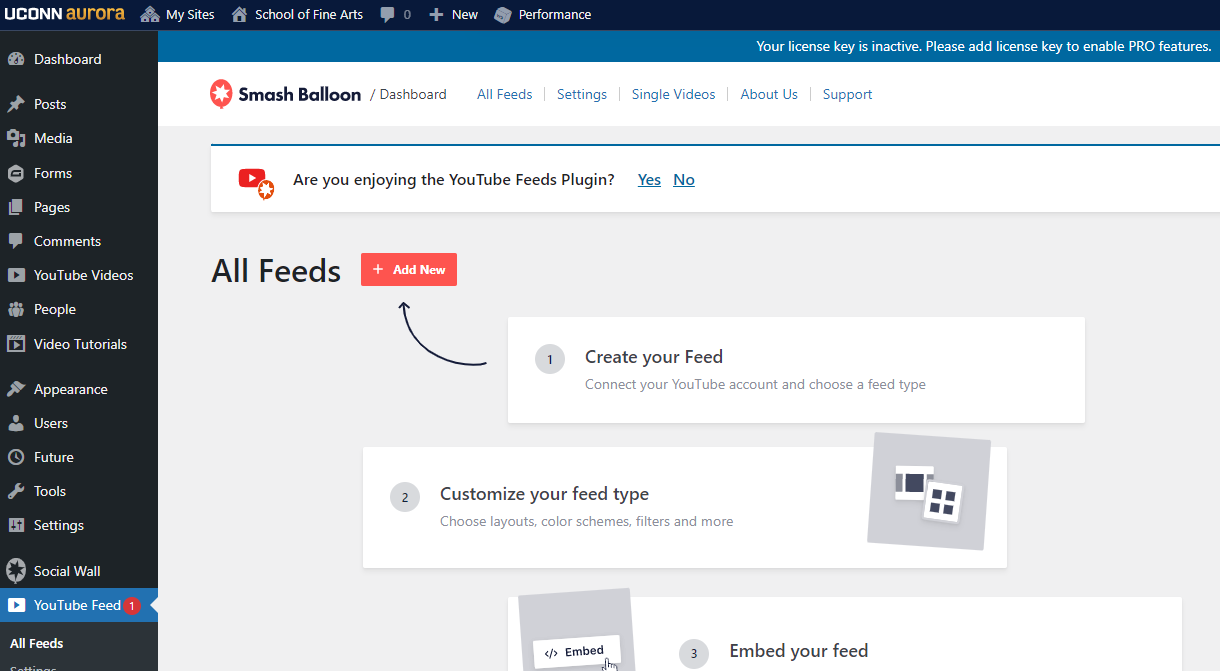
Ignore the link within the Dashboard for YouTube Feed as shown below.  Do Not add license key.

The message states in the blue banner, “Your license key is inactive. Please add license key to enable PRO features.” 

Smash Balloon plugin

Please send an email to webdev@uconn.edu if you have any questions.

Migrating From Other WordPress Servers

For those of you that have been using WordPress elsewhere, there are a few key distinctions you need know about the Aurora server.

Multisite

Aurora is a multisite installation of WordPress, modeled after WordPress.com. Each site has it’s own tables, but they are in one database, and share the same library of plugins and themes.

Plugins

Plugins are controlled at the Network level in Aurora. The addition of any new plugins to the network is decided on by the Aurora Governance Committee.

Themes

Similar to plugins, Themes are also controlled at the network level. Custom themes are permitted, but must pass a Code Audit process before being allowed on production.

Cornerstone

Cornerstone is not a theme that is generally available to Aurora users. Rather, it was designed to be a starting point or a parent theme for all future themes produced by the UITS Web Development Lab. It is also made available to registered Aurora developers. This page is meant to help those developers in using Cornerstone for their own projects.

Built for Developers

Cornerstone was designed from the ground up to be developer-focused. It’s based on the the WordPress _s (‘underscores’) theme mixed with Bootstrap 3. The design philosophy is to enable and turn on every feature we can think of in Cornerstone, and then child themes will need to unregister the features they don’t support. For example, Cornerstone can support header images, background images, and background colors. However, we may not want those features turned on when the site is being administered by someone less familiar with University Brand standards or web accessibility policies regarding color and contrast.

Theme Using Cornerstone

This theme was developed at the Web Development Lab and best show how versatile Cornerstone is.
Harriet Beecher Stowe 2020

Creating Your Own Theme

Cornerstone is a bare-bones theme created to be developed upon. It is possible to create your own theme built upon cornerstones structure. We welcome you to play with the sources files.

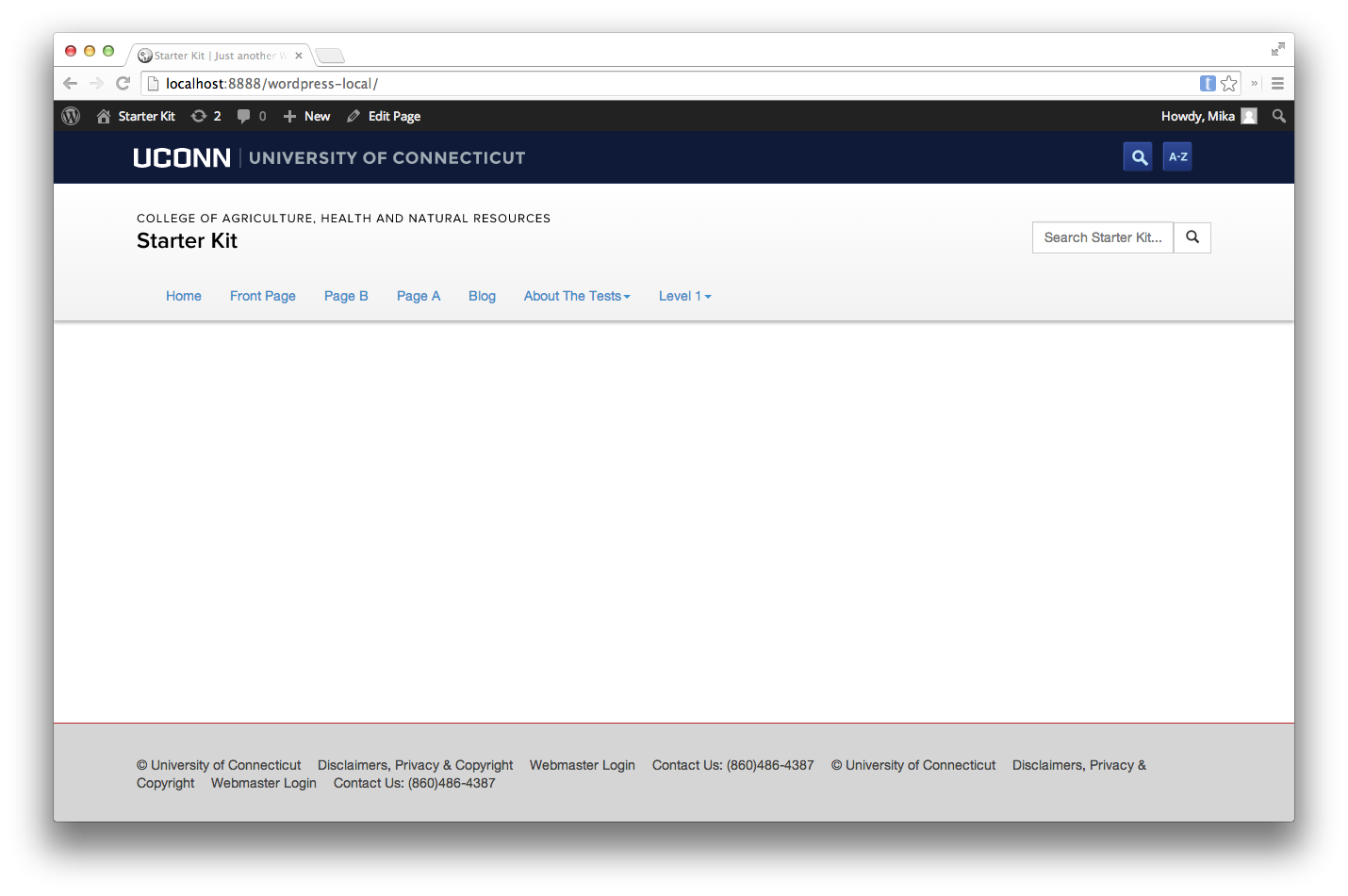
Cornerstone Child Theme Starter Kit

The Cornerstone Child Theme Starter Kit is available to help developers get a new project running quickly. You can access it on GitHub.

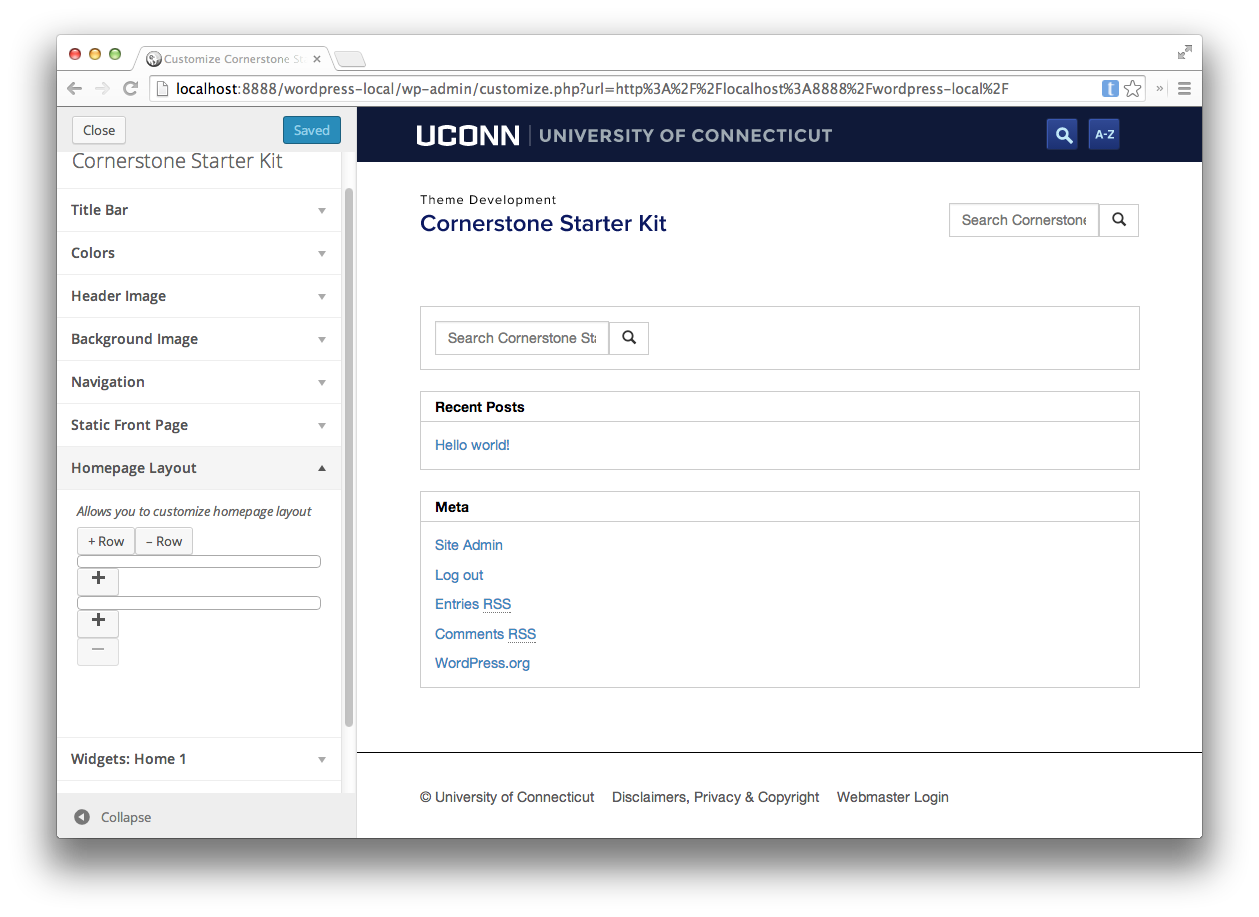
customize screen
Cornerstone basic mode on customization screen.
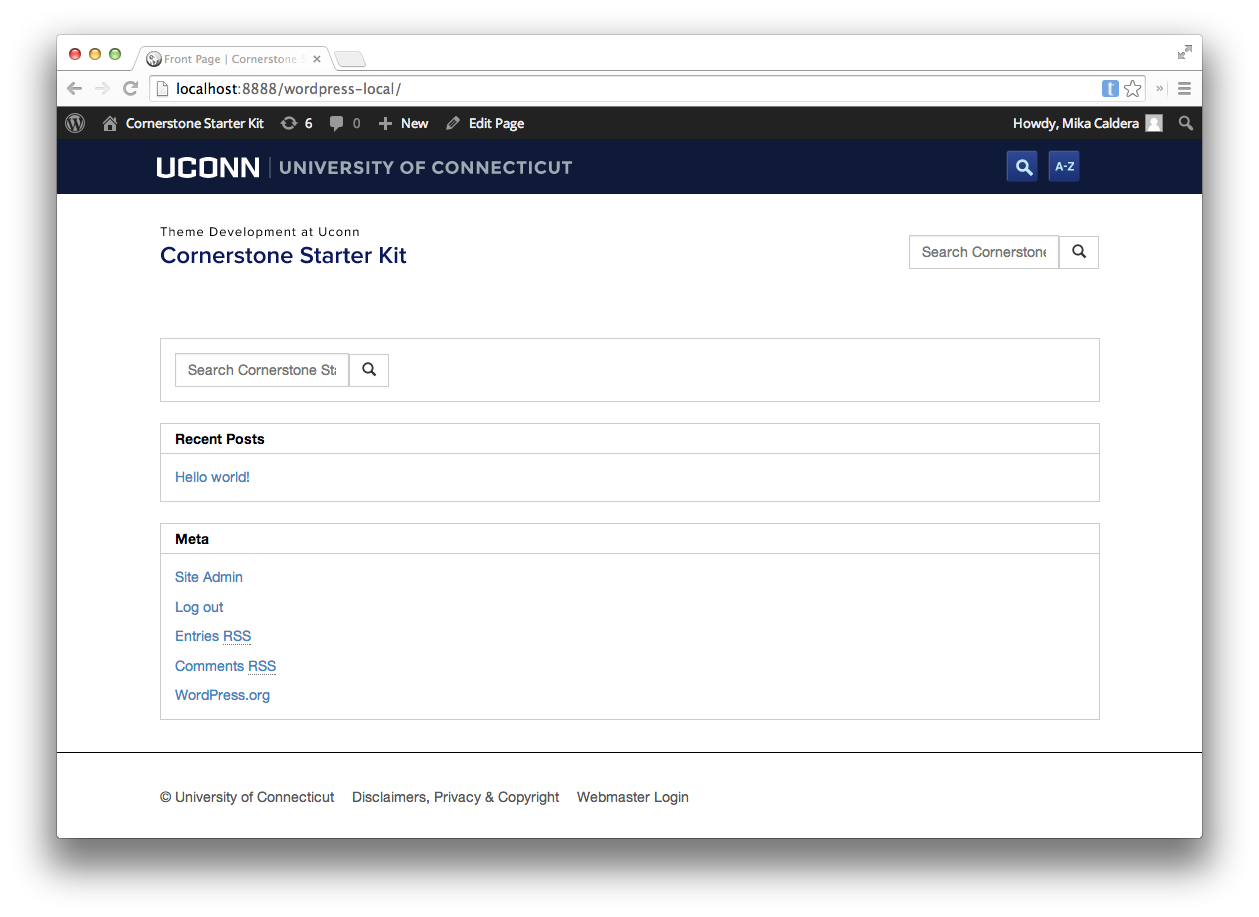
basic screen
Cornerstone basic mode screenshot

Child Theming with SASS

Cornerstone is built with SASS, and if you build your child theme with SASS, you’ll be shocked at how fast you can make a ton of changes. Though you are able to use CSS, Cornerstone was optimized for SASS.

Initial Child Theme Setup

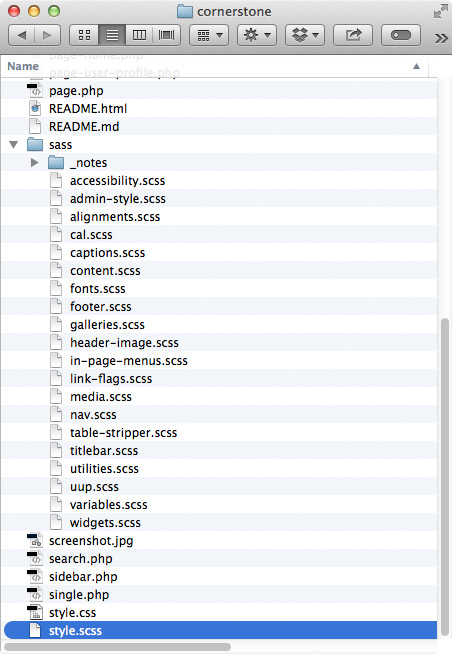
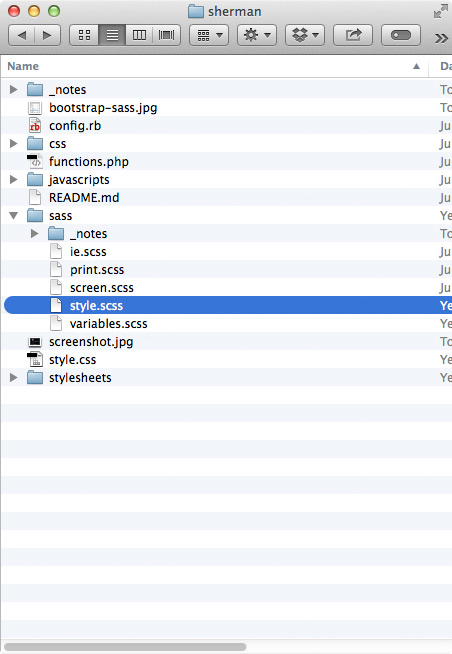
To begin you must create the basic file structure like any other WordPress child theme. Below is an example. UITS has already compiled a starter kit for you in your sandbox.

Your Cornerstone Starter kit should consist of:

  • javascripts
    • min
      • starterkit.min.js
    • starterkit.js
  • sass
    • variables.scss (SASS variables are located here)
  • css
    • variables.css
  • screenshot.jpg
  • functions.php
  • README.md
  • style.css
  • style.scss (This is the ideal place to do style changes)

Understanding SASS

The SASS variables available to you come from three possible documents. Cornerstone registers a large number of new variables mostly pertaining to navigation and widgets.

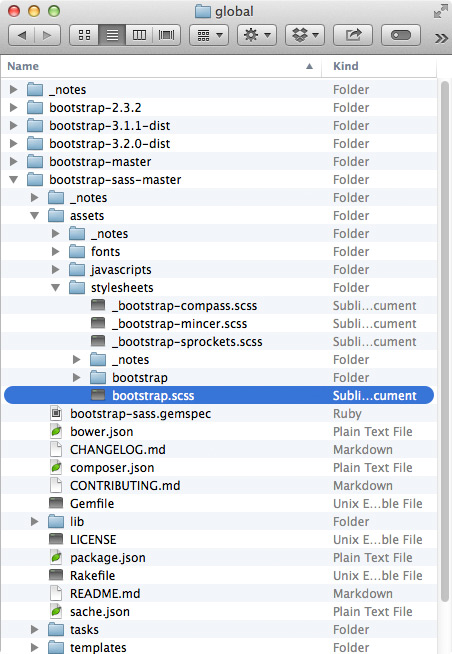
cs-sass-bootstrap
This is the pre-compiled Bootstrap scss in the global directory, and it has hundreds of variables.
cs-sass-cs
Cornerstone registers a large number of new variables, mostly pertaining to navigation and widgets.
cs-sass-sherman
Sherman, a child theme built with SASS, can redefine any of the variable in Bootstrap or Cornerstone before they are compiled. Rather than wrestling with a dizzying number of selectors and tracking down every single place a single color or font may be referenced, you can edit a few variables and be 80% complete with your redesign. It’s fantastic!

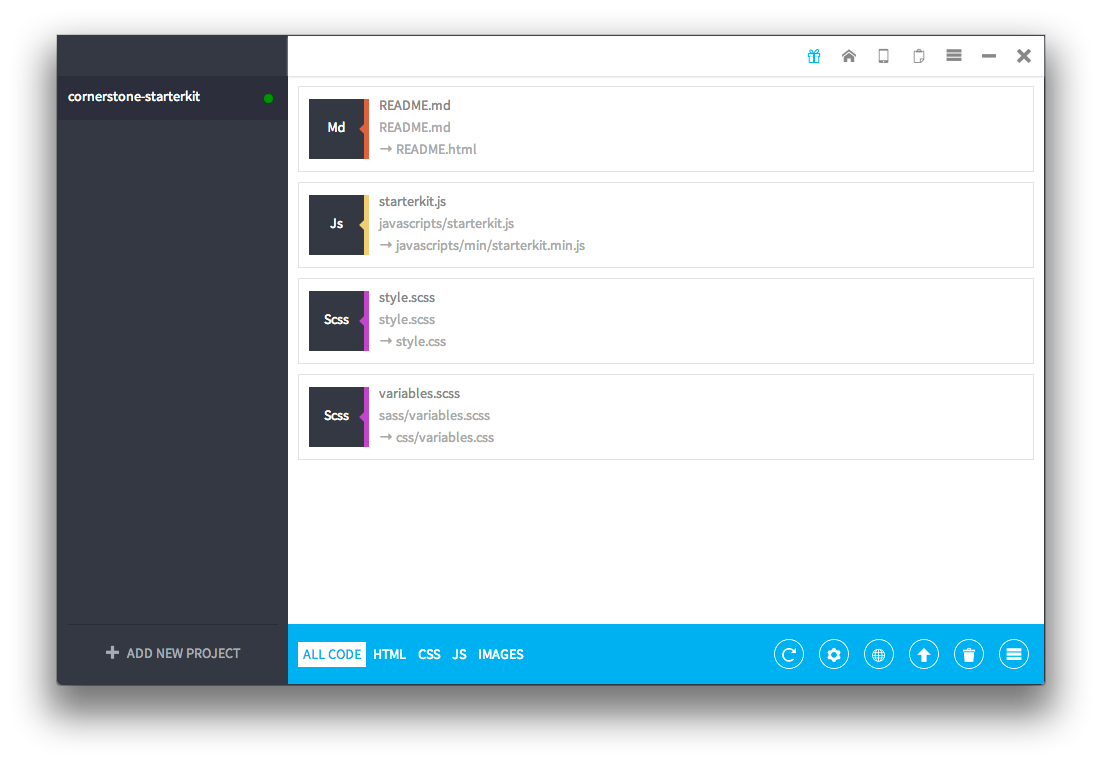
Using a Compiler

In order to make changes, you will have to edit style.scss using the SASS variables. You will also need a SASS compiler. A common one is PREPROS.

prepros scrrenshot
Using Prepros

Editing variables.scss

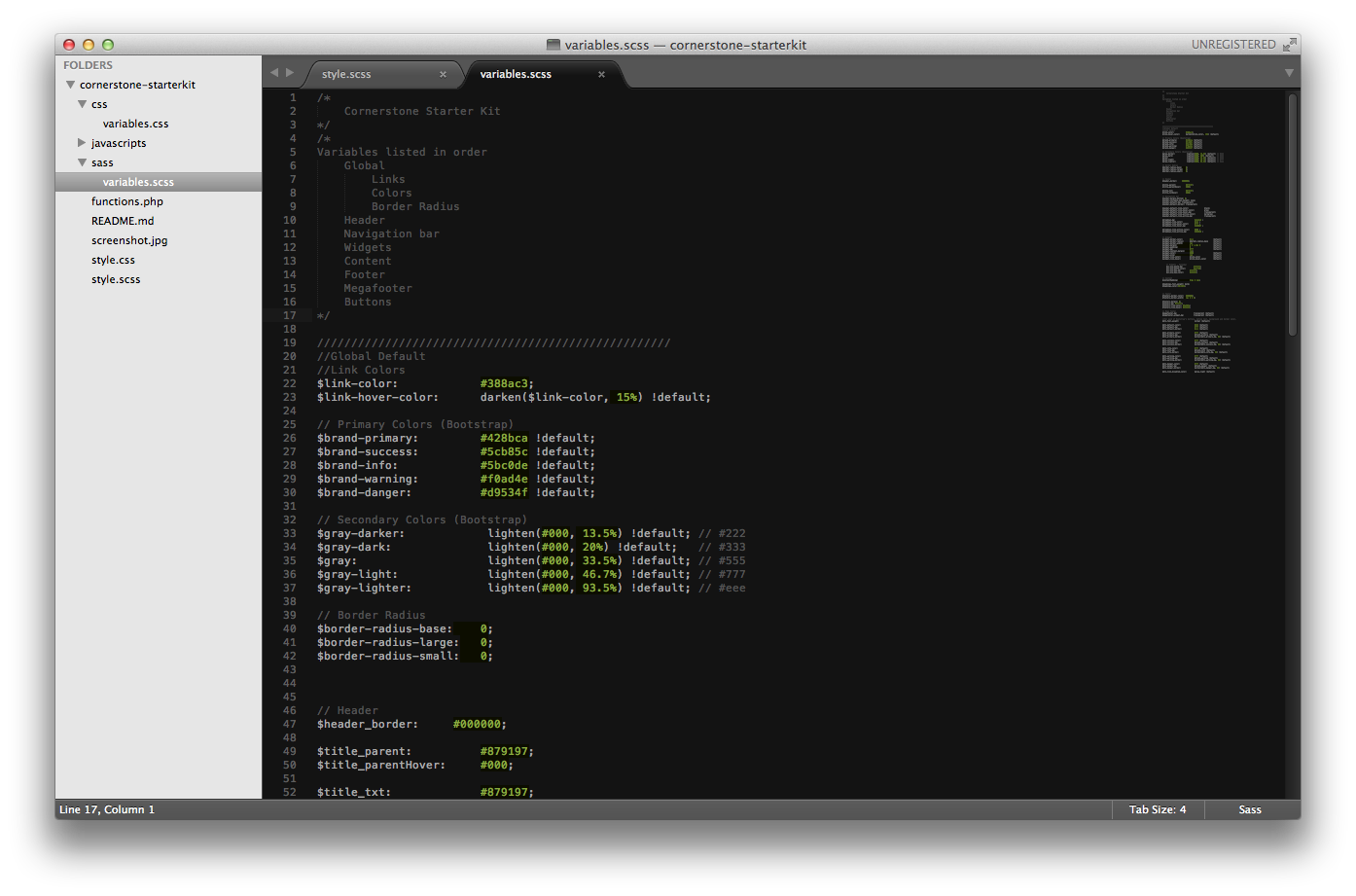
Once you have a general understanding of the variables and the file structure you can start editing variables.scss. This file contains listed default variables from both Bootstrap and Cornerstone. A change is simple: search for your target tag and change the attribute to whatever you would like it to be.

Overview of the variables.scss file

Example

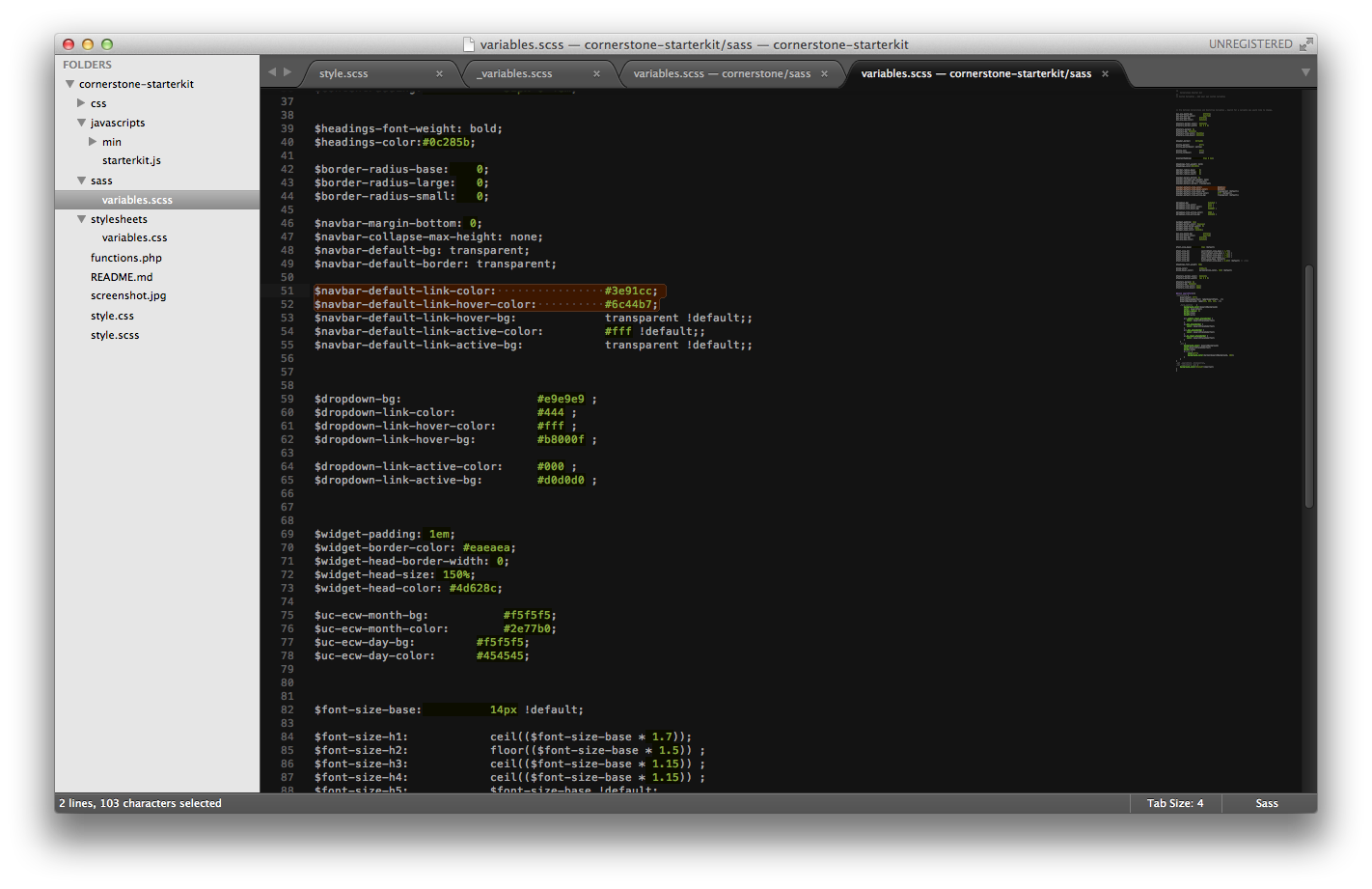
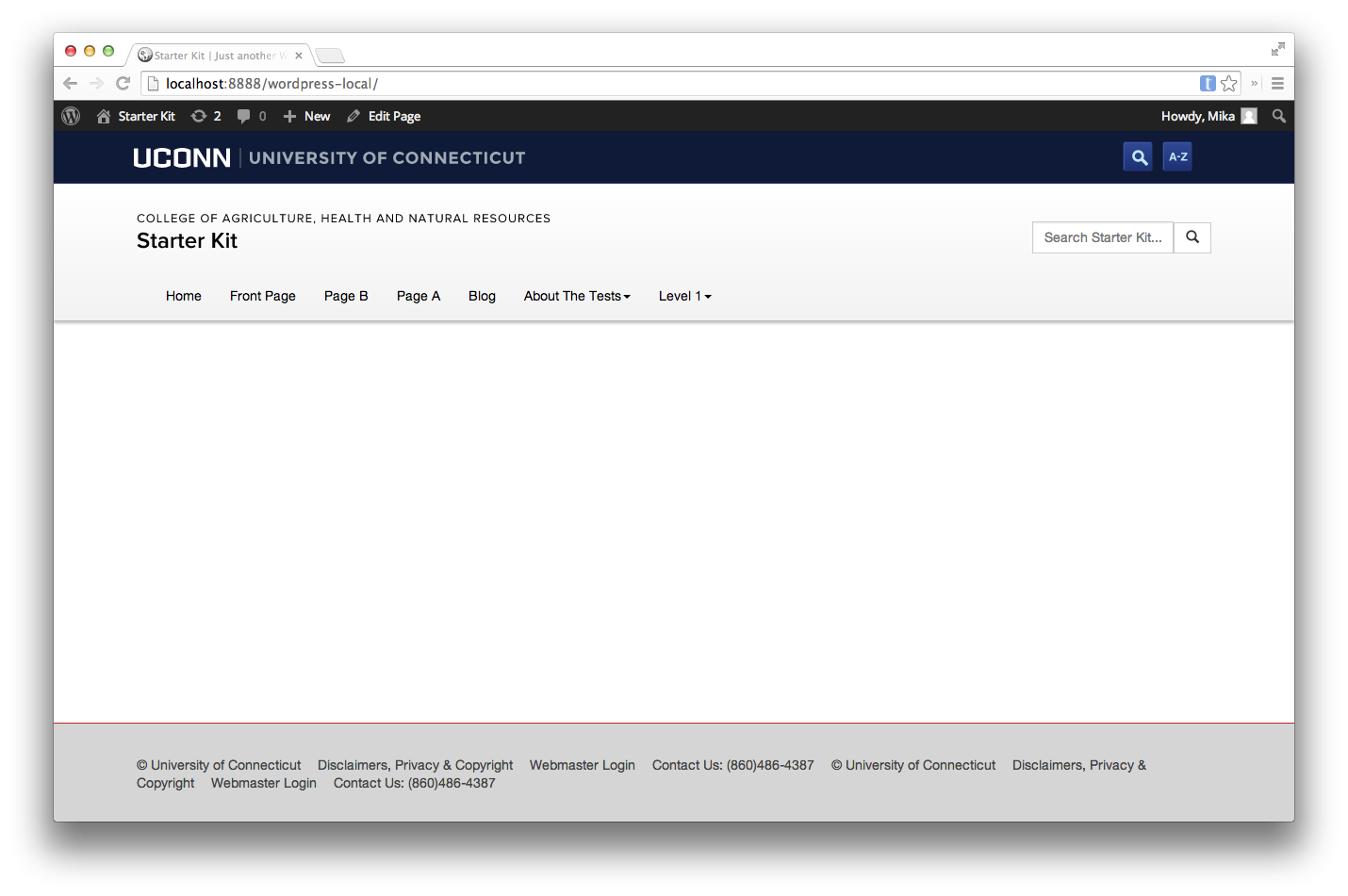
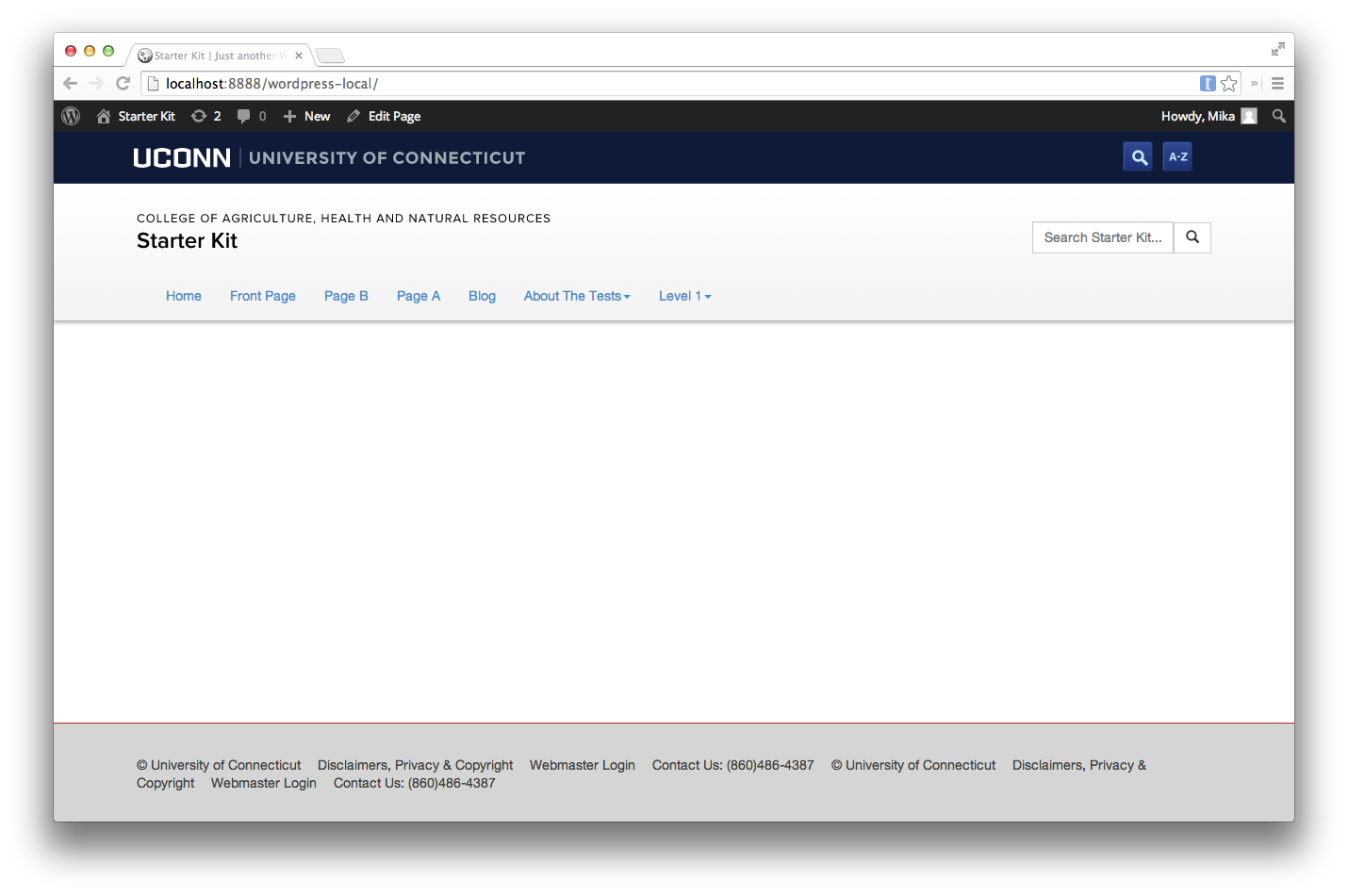
To change the default link color for the navigation bar you would have to scroll down to the “$navbar” variables and make the changes you would like.

Variables we will be changing. The hex codes would be located here.
Look before any changes have been made to variables.
change variable
Look after changes have been made. Now, the navigation bar links are light blue!

Editing style.scss

In order to edit the style of your theme you will need to edit it using SASS in style.scss. Variables do not go in style.scss.

Example

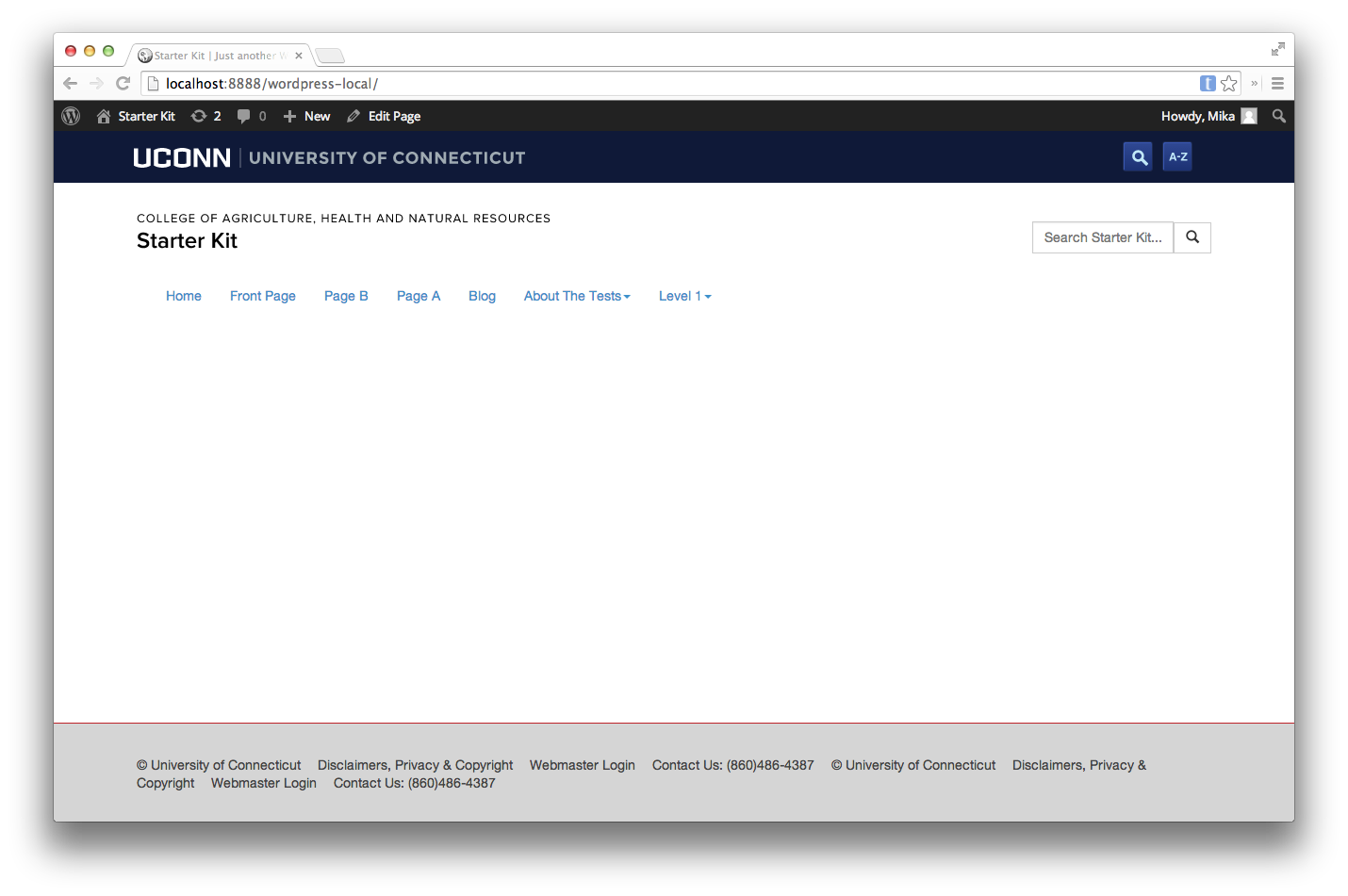
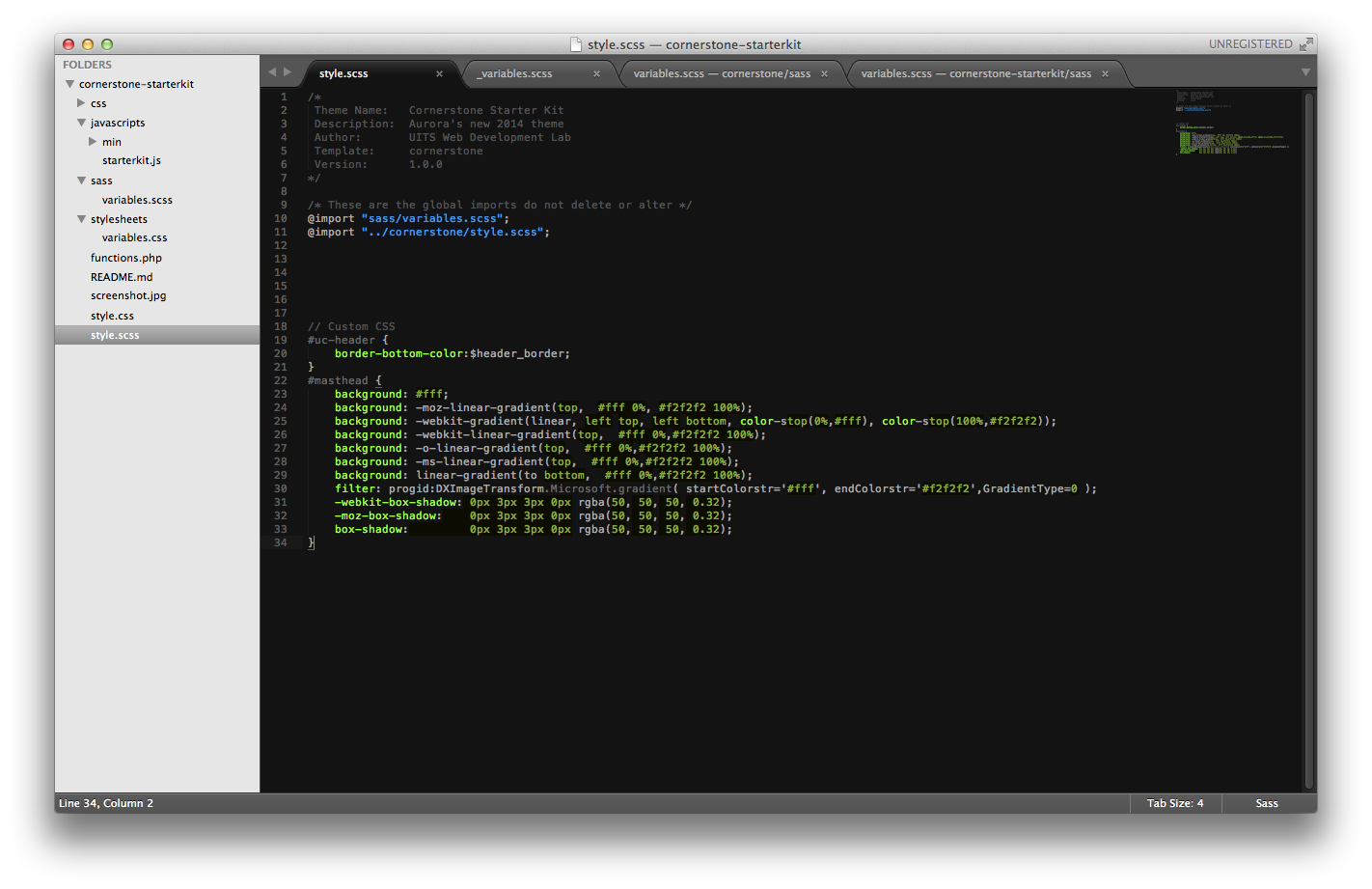
Below is an example of how you can change the style of your theme’s master header.

Header before a style change.
Changes to styles.scss files.
Theme after style.scss change has been applied.